Create Your Own Widgets
Make the interactive elements your videos need
A widget is an interactive element you place on a video in Creative Studio: a lead form, a poll with live results, a countdown, a lower third, a chapter menu, a product card, a button. Cinema8’s library has many ready widgets; in Customisation → Widgets you can make your own, with AI Writer, from a ready widget or by writing the code.
A widget is made once and placed on as many videos as you like. Each placement has its own properties (its texts, colours, images, what happens when it is clicked), filled in in Creative Studio, so one lead form can ask different questions in different videos.
Step 1 — Open the Widgets tab
In the main menu, click Customisation, then the Widgets tab.
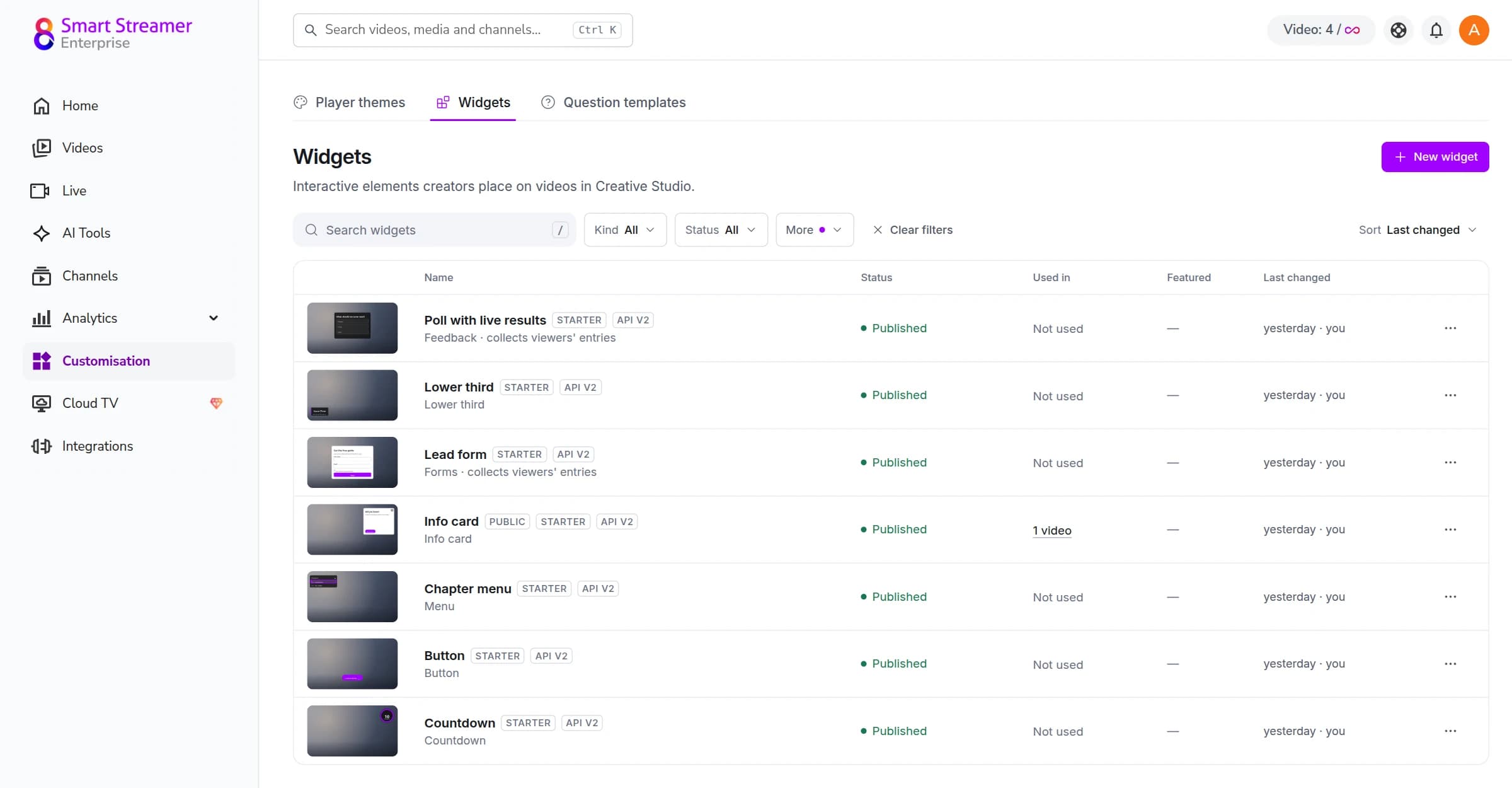
The list shows your widgets with their kind, whether they are published, and how many videos use them. Search, the Kind and Status filters and Sort help in a long list; the ⋯ menu of a row opens, duplicates, exports, hides or deletes a widget (a widget used in a video cannot be deleted, only hidden from the library: those videos keep working).
Step 2 — Make a widget
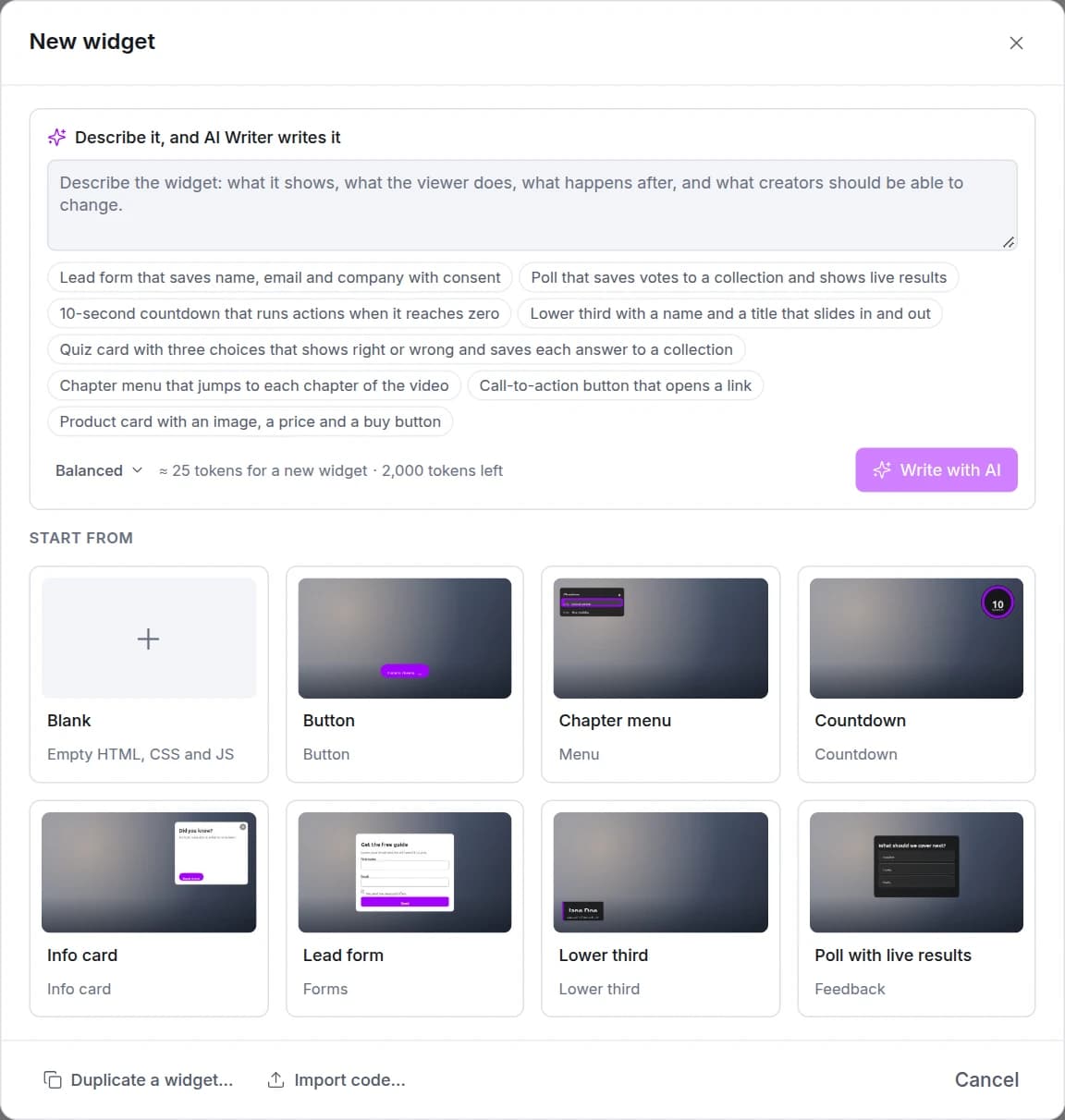
Click New widget. There are three ways to start:
- Describe it, and AI Writer writes it. Write what the widget shows, what the viewer does, what happens after, and what creators should be able to change; or pick a suggestion (a lead form, a poll with live results, a countdown, a lower third, a quiz card, a chapter menu, a call-to-action button, a product card). AI Writer uses your account’s AI tokens; the window shows the cost before you start.
- Start from a ready widget: Button, Countdown, Info card, Lead form, Lower third, Menu or Poll with live results. You get your own copy to change.
- Blank: a name, a kind (Creative Studio lists the widget under it) and empty code, for developers.
Duplicate a widget… copies one of yours or one from the Cinema8 library, and Import code… brings in a widget exported from another account.
Step 3 — Shape it in the editor
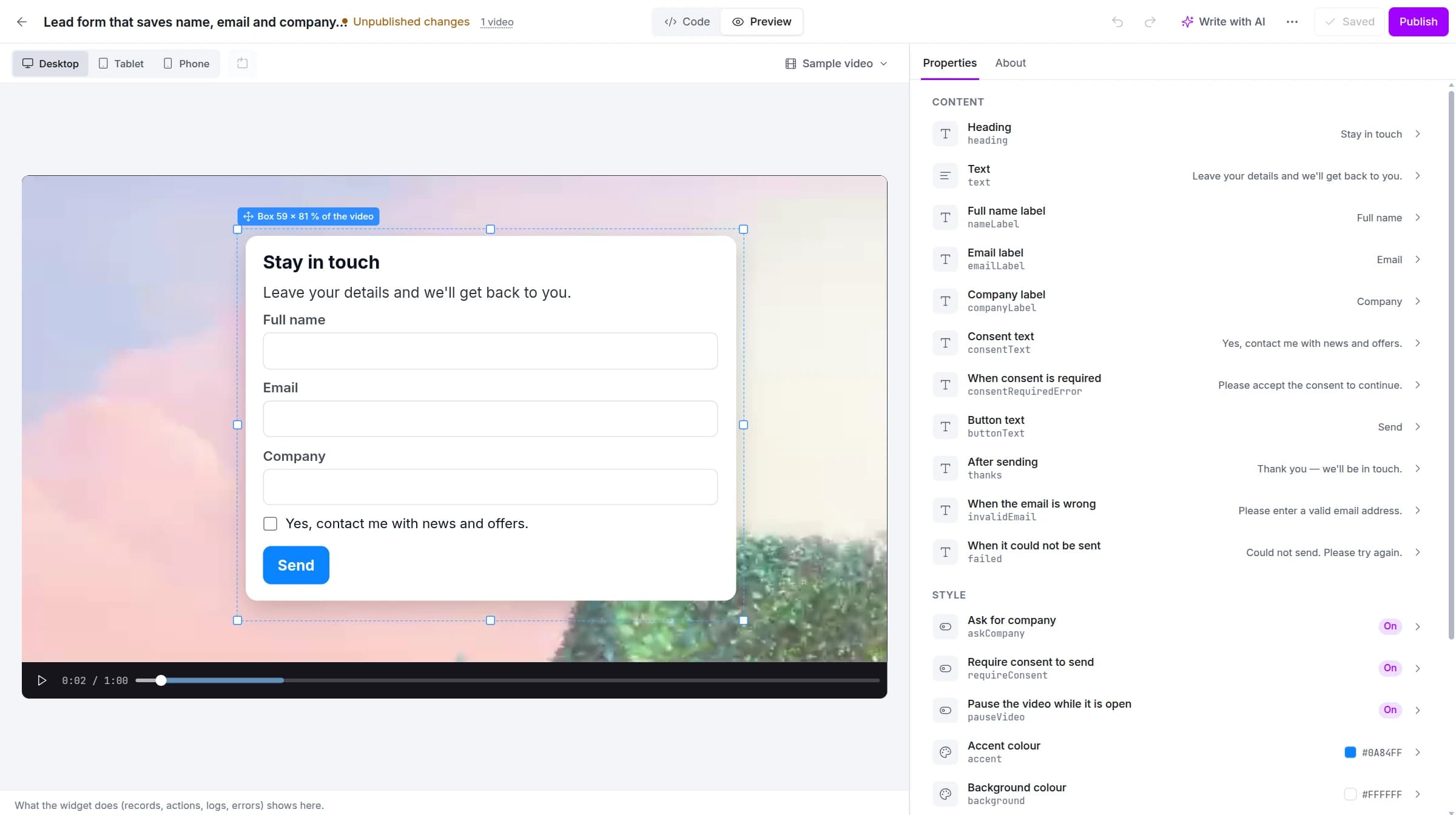
The editor plays your widget on a sample video, at desktop, tablet and phone sizes. Drag the box’s handles to set where a new placement starts and how big it is. What the widget does (clicks, actions, saved records, errors) shows in the line under the video; nothing is sent from the editor.
On the right:
- Properties are what creators fill in for each placement: texts, colours, images, switches, choices, sizes, and Actions (what happens when the viewer clicks or sends). Click a property to change its name, its default or its help; Add a property adds one.
- Saving records (on widgets that collect entries, like forms and polls) says what the widget saves to a collection, who can read the records back (only your account, or viewers too, for live poll results and comments), and whether the records may go on to mailing lists such as Mailchimp and HubSpot.
- About holds the name, the kind, the description and the picture creators see in Creative Studio’s widget library.
Your changes are saved as you work, as a draft: videos keep the published version until you publish.
Step 4 — Change it with AI Writer, or in the code
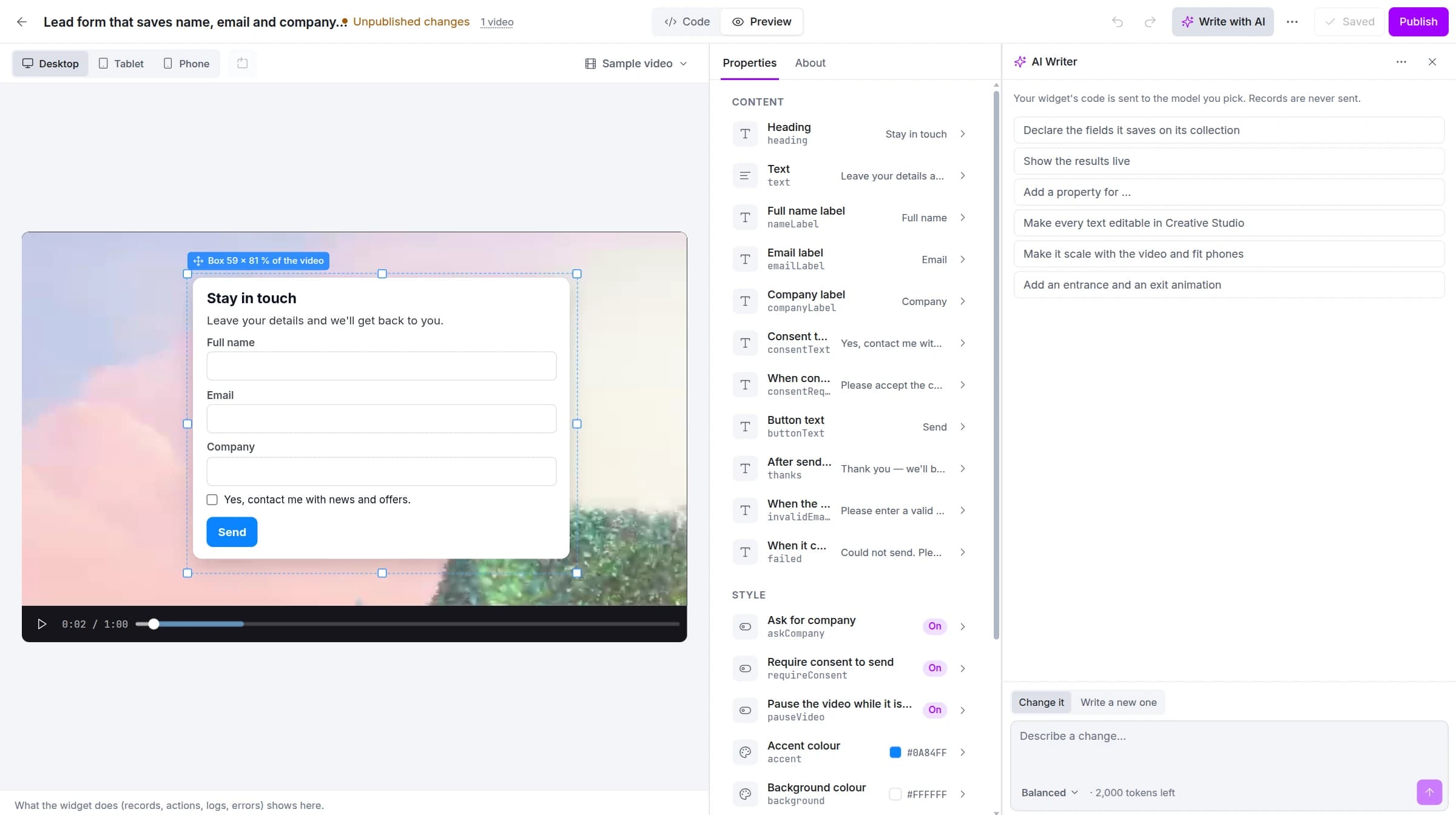
Write with AI in the top bar opens AI Writer beside the preview. Describe a change (“make it fit phones”, “add a company field”, “show the results live”) or pick a suggestion; AI Writer proposes the change, tries it in the preview, and you review it before it goes into the draft. Each change shows its cost in AI tokens.
Developers can open Code to edit the HTML, CSS and JavaScript themselves, with a Reference panel beside the code. The editor checks the code as you type and lists what it finds in the top bar; Fix with AI hands a problem to AI Writer. See the Widget API v2 guide.
Step 5 — Publish
Click Publish. The window says how many videos change at once, lists anything the editor’s checks found, and shows what changed in this version. If a change would clear values creators set (a removed property, for example), it asks you to confirm each one. Add a note for the version history if you like.
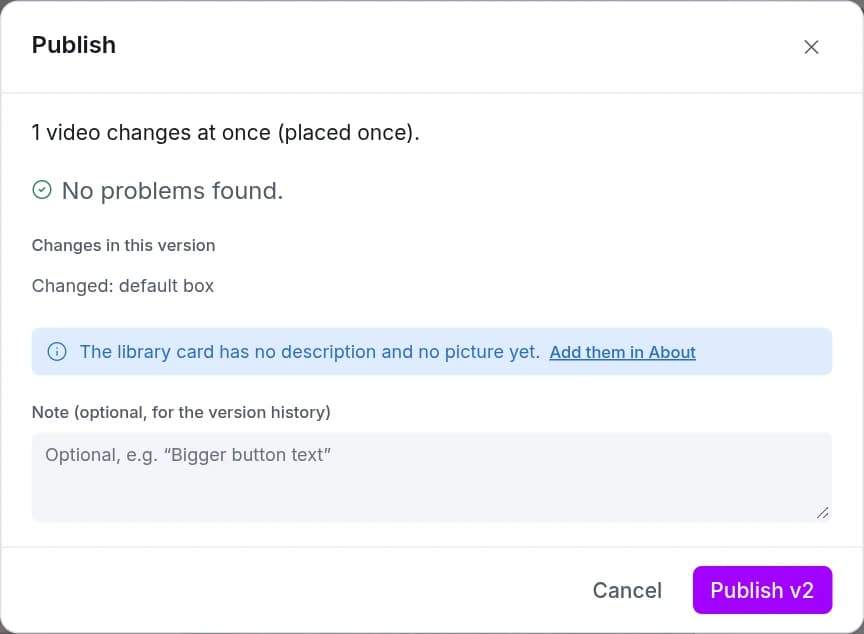
Each publish is a new version; Version history in the ⋯ menu can bring an earlier one back. Where it’s used lists the videos that use the widget.
Step 6 — Place it on a video
In Creative Studio, open the Widgets tab on the left, find your widget (search by name, or filter by kind) and add it to the video. Fill in its properties in the panel, set what happens when it is clicked, and move and resize its box on the video. Open in the widget editor in the widget’s panel brings you back to the editor.
Publishing a new version updates the widget in every video that uses it, and the values creators set in those videos stay.
For developers: widgets are written with Widget API v2: three parts (HTML, CSS, JavaScript) in their own sealed box, with typed properties, actions, collections and animation. Start with the Widget API v2 guide.